Organizations & Staff
Looking for help? Browse our support options or join the forum to get personalized assistance from our team and community.
Multi Tenant
SpaceDF uses a multi-tenant architecture, allowing multiple customers to run on a single platform while keeping data, users, and configurations fully isolated.
Each tenant represents a separate organization or customer environment, operating independently to ensure security and privacy.
Each tenant has its own isolated environment, meaning:
- Data is not shared between tenants
- Users can only access their own resources
- Actions in one tenant do not affect others
This tenant-based structure enables secure, scalable, and well-organized management of multiple customers in SpaceDF.
SpaceDF organizes multi-tenancy using the following hierarchy:
Tenant → Organization → Space → Devices → Users
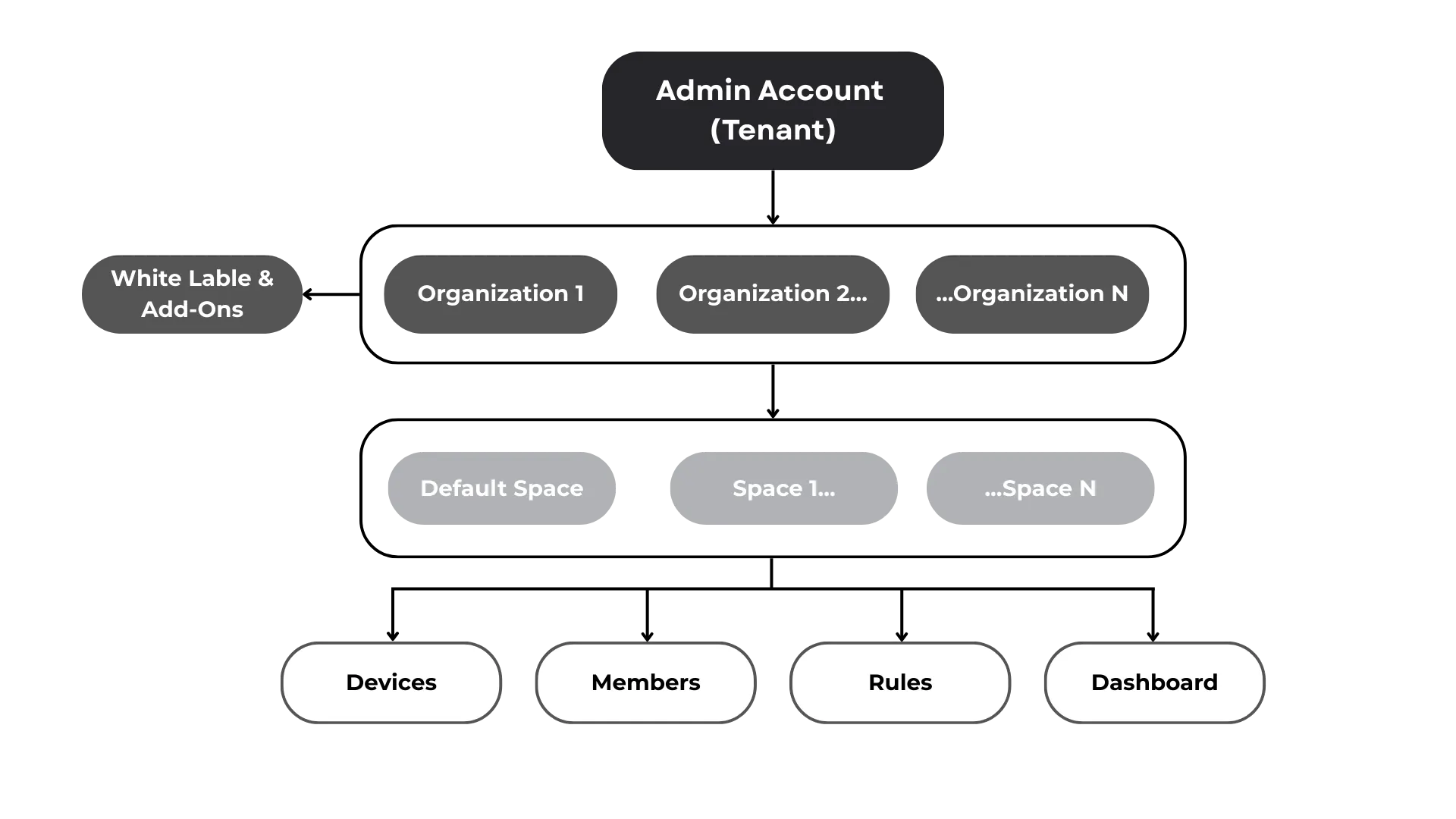
Organization and Space are core building blocks of tenants in SpaceDF.
What is an Organization?
An Organization is the top-level container in SpaceDF where you can manage all your Spaces, devices, users, dashboards, data, and integrations in one centralized place.
An Organization can contain multiple Spaces, each representing an environment, project, or specific use case.
Key components within an Organization include:
- Spaces: Logical containers for devices, members, and dashboards.
- Devices: Hardware added to Spaces for tracking, monitoring, and integration.
- Members: Users with assigned roles and permissions within its Spaces.
- Data & Dashboards: Collected data from devices, visualized in dashboards for monitoring and analysis.
- Configuration Settings: Organization-wide and Space-specific settings that govern behavior and access.
By structuring resources this way, an Organization ensures that each team or customer’s data and operations are isolated while still providing a centralized overview for management.
👉 If you don’t have experience creating an organization on SpaceDF before, please refer to the Onboarding Guide.
Organization Management
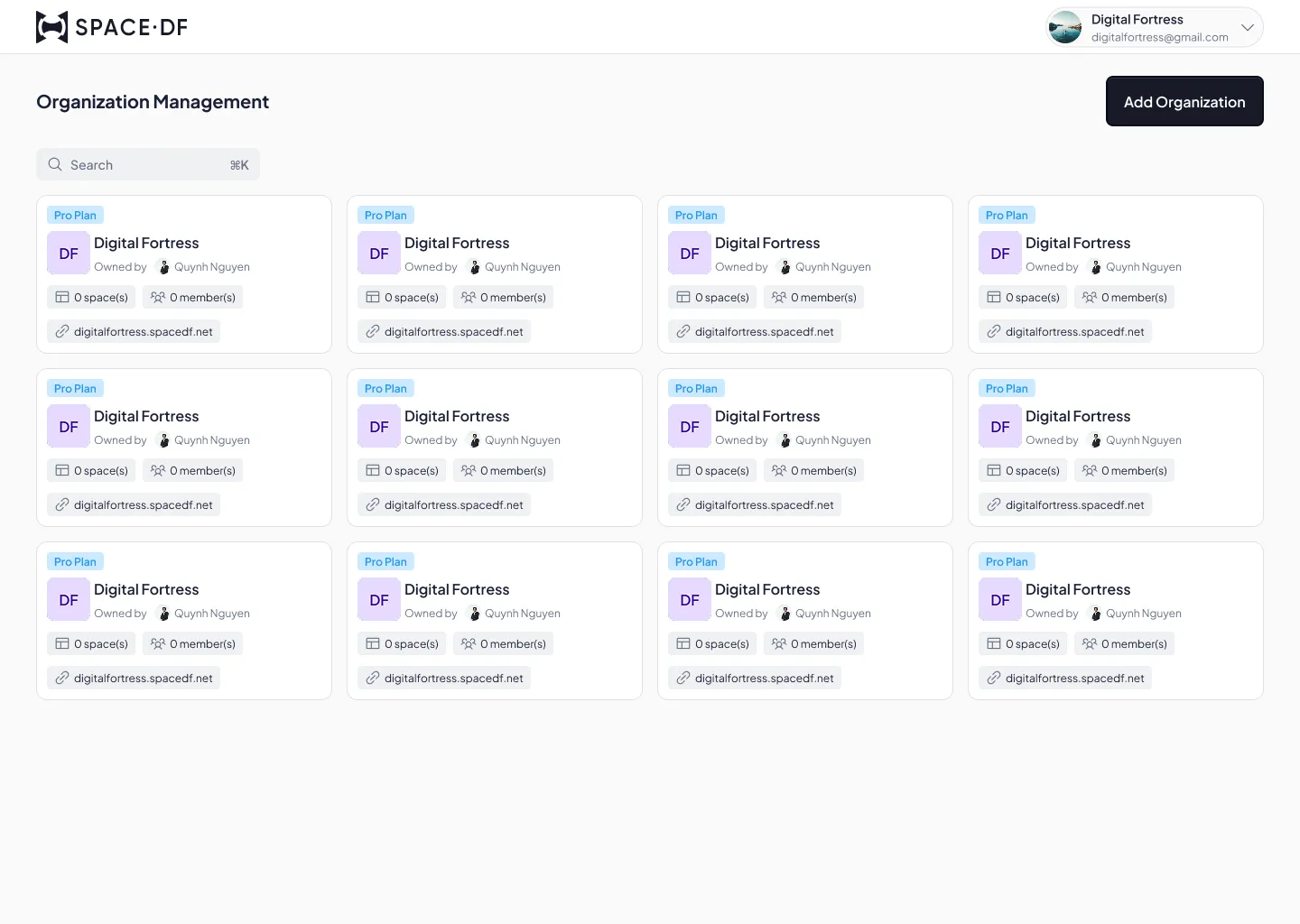
Organization Management is the central area where you manage all Organizations (Workspaces) within the system. Organization Management is also where the platform’s multi-tenancy capabilities are implemented and maintained.
You will automatically access Organization Management after logging into your account through spacedf.com
With the Organization Management site, you can:
- Create, delete, and manage all Organizations
- Configure the URL Slug Name - the unique link to each Organization’s Space
- Set up organization-specific preferences and configurations
Administration & Staff
At the Organization level, SpaceDF provides clear, role-based access to manage users, resources, and configurations securely.
Admin (Organization Owner)
Admins have full control over the Organization, including:
- Managing organization settings and branding
- Adding, removing, and managing users
- Assigning roles and permissions
- Managing Spaces, devices, and integrations
- Accessing billing and system-level configurations
Admins are responsible for the overall structure, security, and operation of the Organization.
Staff
Staff members support day-to-day operations within the Organization. Depending on their assigned role, they can:
- Manage Spaces and devices
- View and access data
- Configurable permissions
Staff access is limited to the permissions granted by Admins.
Device Hub
The Device Hub is the central place where you manage all devices within your Organization.
From here, you can view device details, check their connection status, publish data, and organize inventory before assigning devices to users or locations.
The page is divided into two main tabs:
Inventory
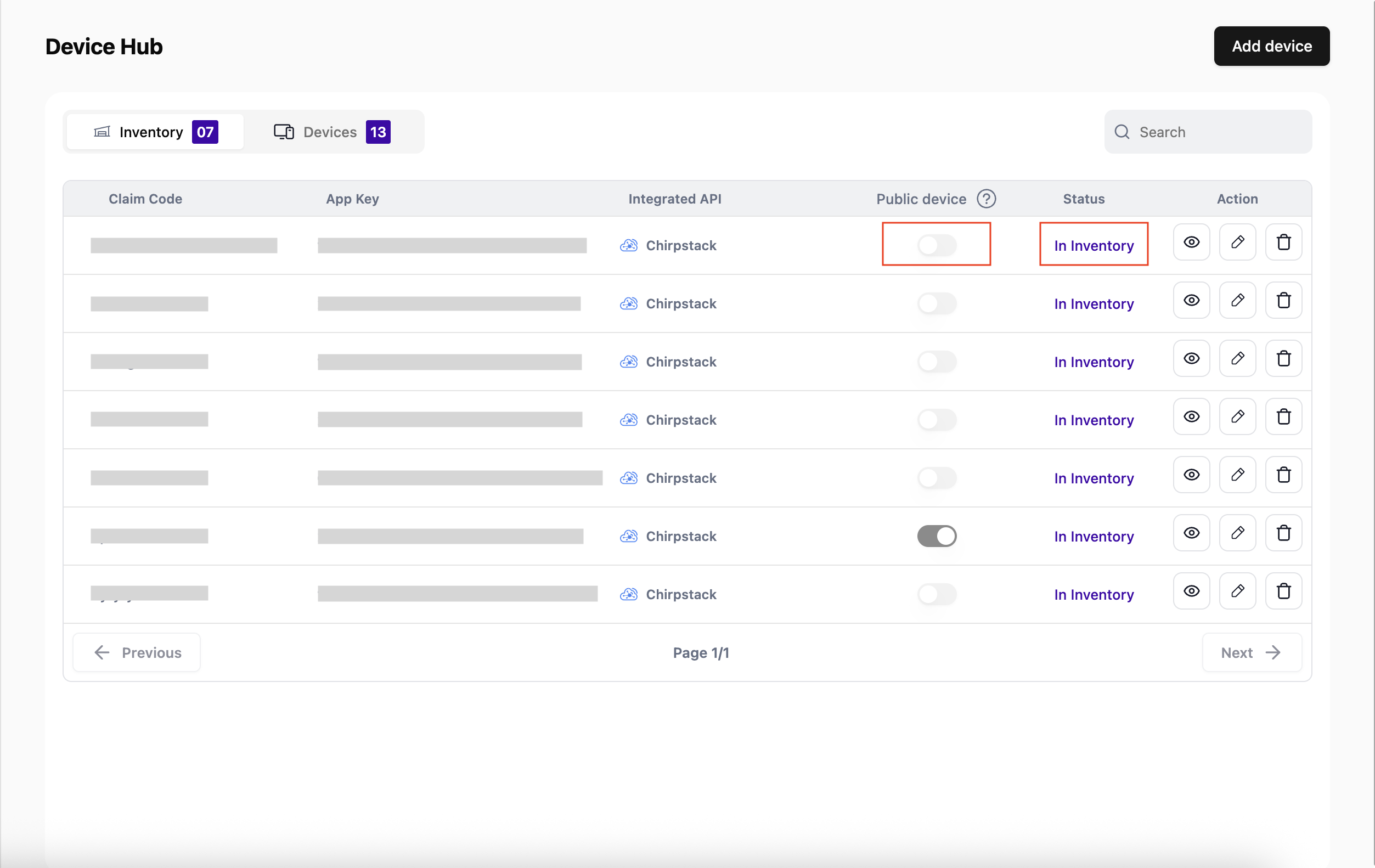
The Inventory is used to manage and organize devices before deployment. When a device is added, it is automatically stored in the Inventory. These are devices that have been added but have not yet been assigned to any Space.
Admins can also enable Public Device on this tab, allowing it to be shared device on the map with all users in the Organization.
Devices
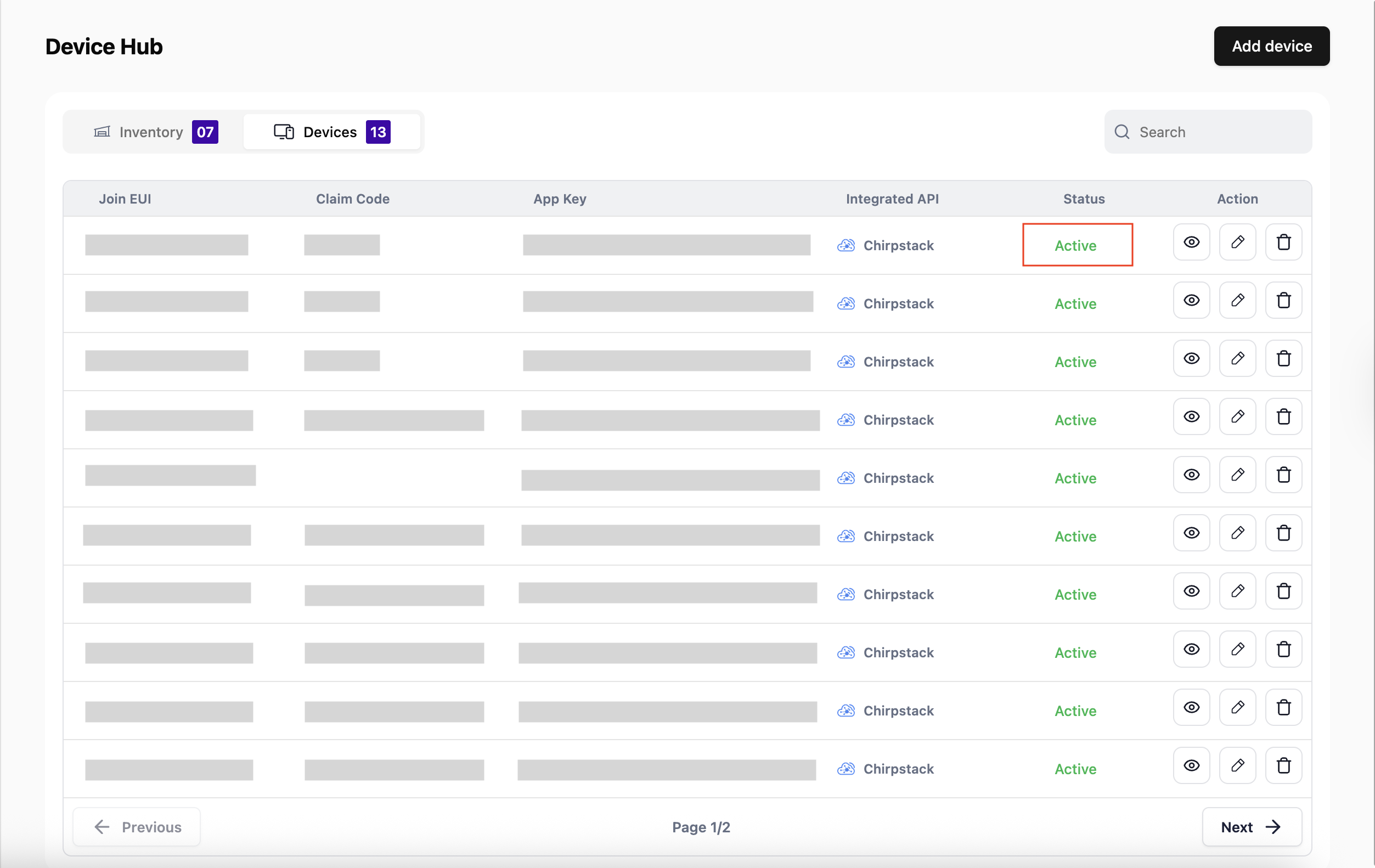
When devices in the Inventory are added by users to a Space, their status automatically changes to Active and they move to the Devices tab, ready for monitoring, data collection, and management within the Space.
For instructions on adding a device to the Inventory of Organization, please refer to Add Device to Device Hub.
For instructions on associating a device to the Space, please refer to Add Device to Space.
What You Can Do in the Device Hub
- Add New Devices
- View Information and Manage Registered Devices
- Manage Inventory Before Deployment
Template
An Organization Template is a pre-configured setup that helps you create a new Organization quickly and consistently. It includes preset dashboards, device categories, and essential configurations for a specific solution.
You can select a template when creating a new organization.
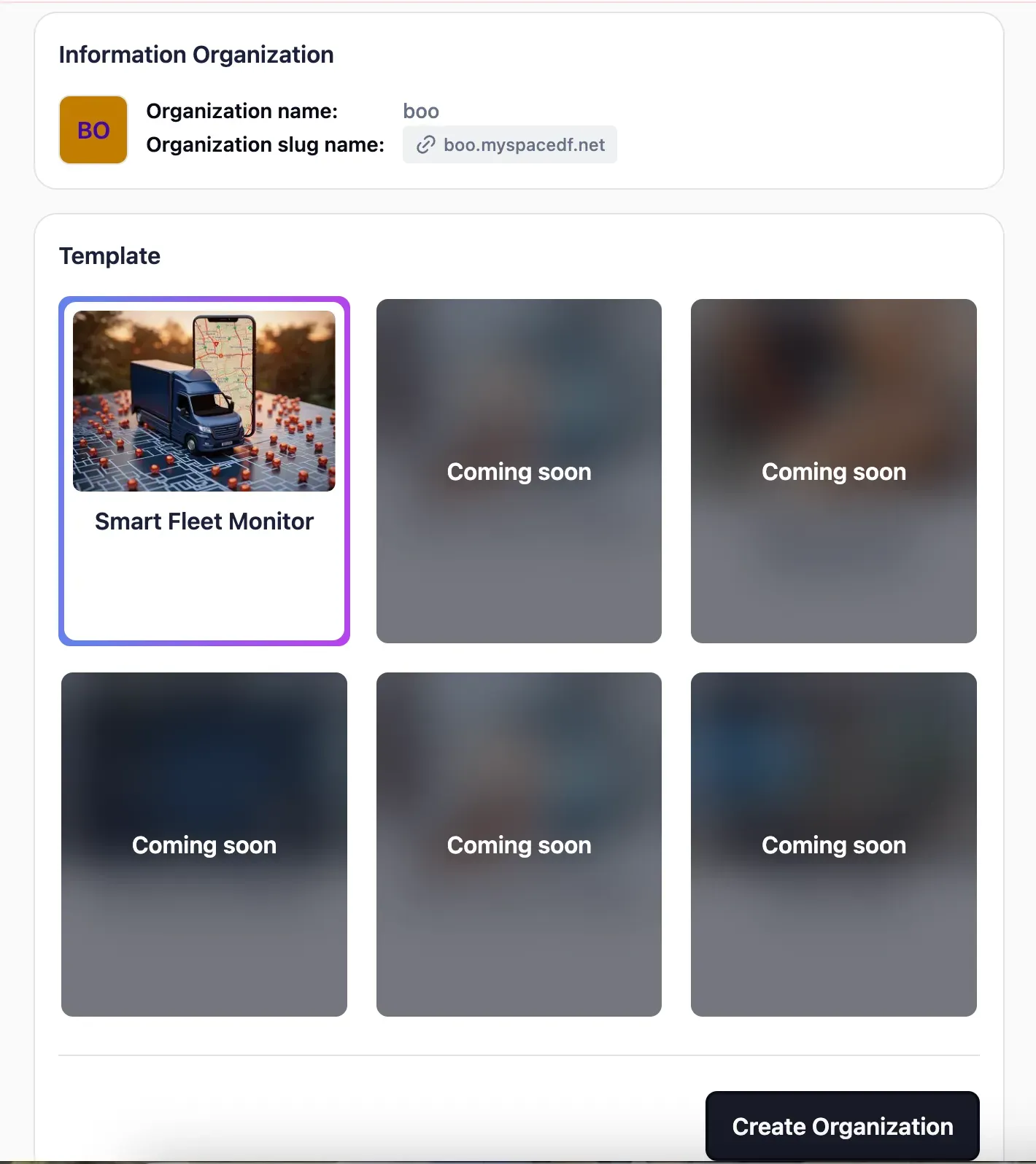
For the beta version, we offer the Smart Fleet Monitor template, which is suitable for GPS trackers. More templates will be developed and made available soon.
White Label
White Label in SpaceDF allows you to run the platform under your own brand. From the end user’s perspective, they are using your platform, not SpaceDF.
With White Label, you can:
- Customize the platform name, logo, and brand identity
- Access SpaceDF via your own domain or subdomain
- Use branded email templates
- Apply API branding for external integrations