Smart Building
Opening Your Space
- Open Space URL: In your workspace, click on your organization’s URL slug name
- Access Space Site: The space site will open automatically
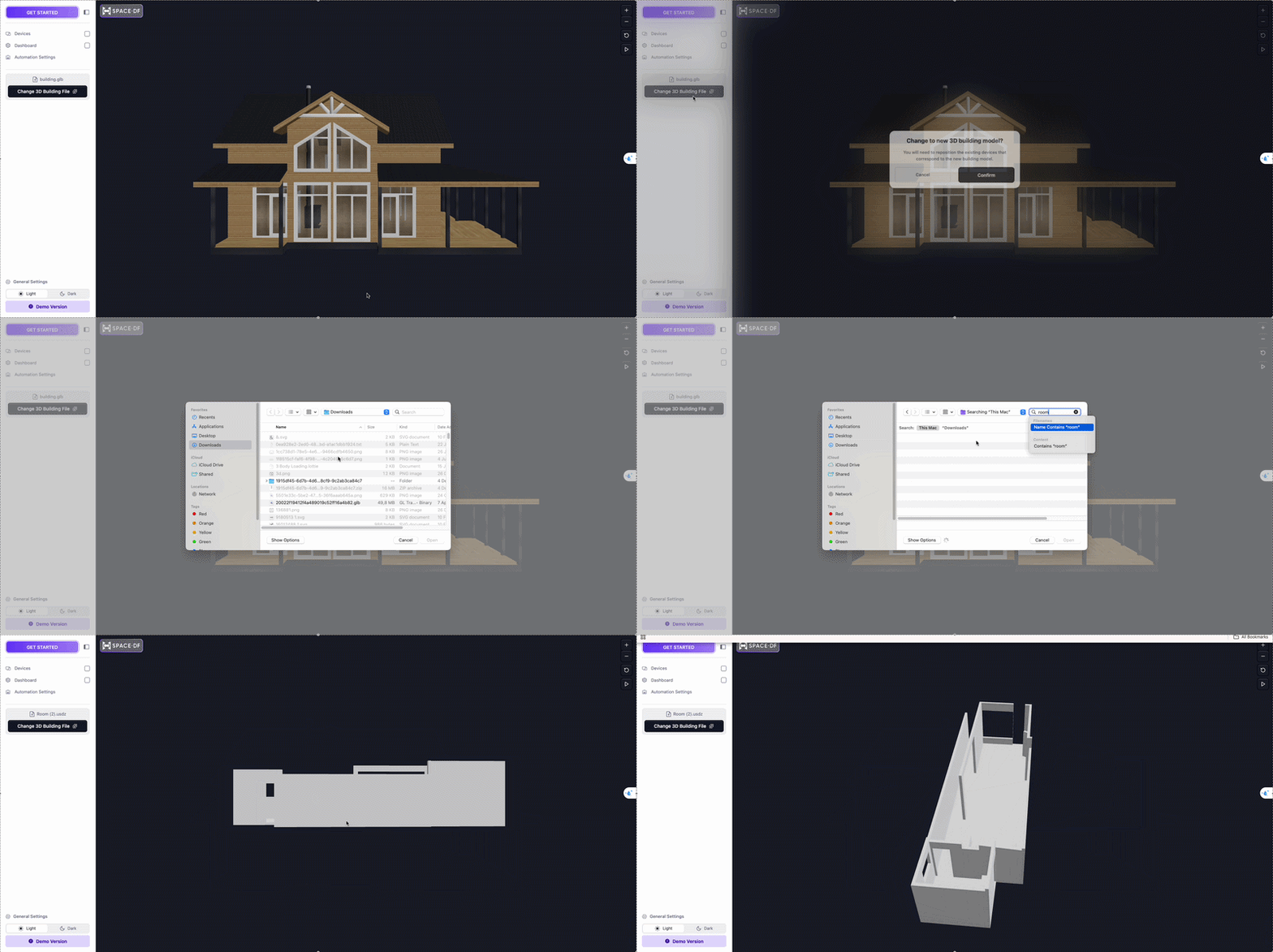
- You can preview the default 3D model without signing in
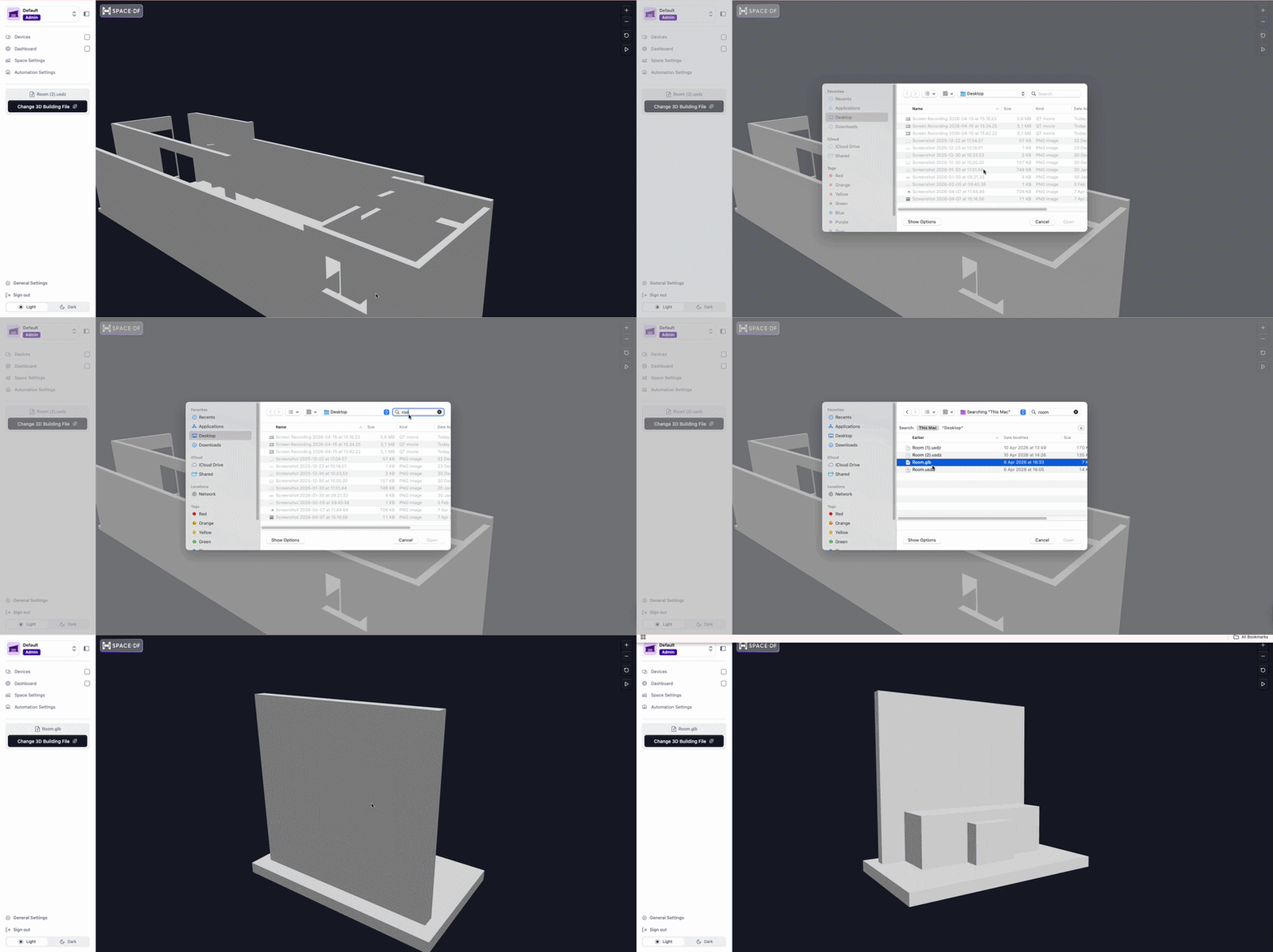
- You can also click “Change 3D Building File” to upload and preview your own model
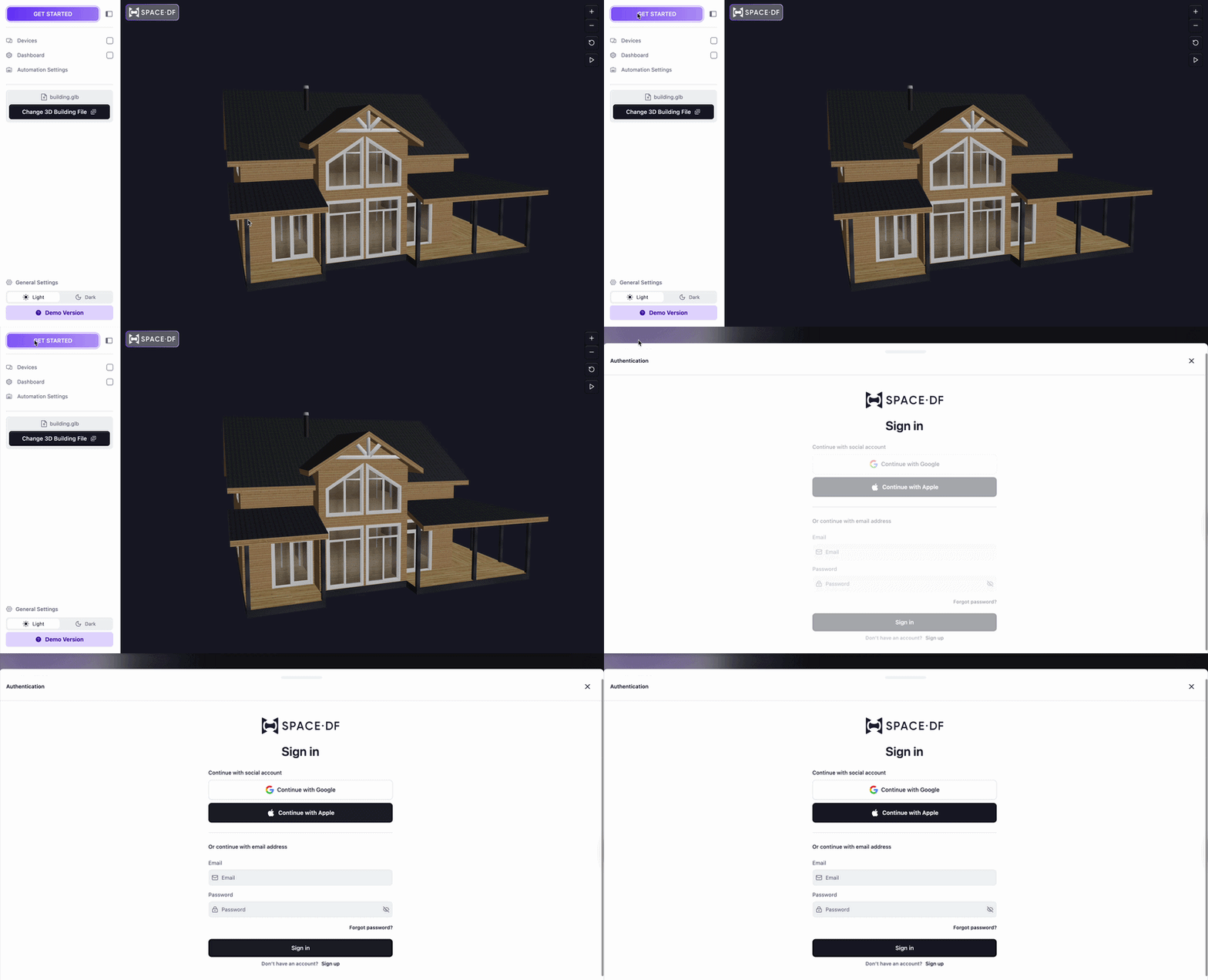
- Sign In: Choose “Get Started” to sign up or sign in
- Select Sign Up if you don’t have an account
- Select Sign In if you already have an account
- Use the same email/password or Gmail account from the organization site
👉 Note: If you don’t have a 3D model yet, you can use our MatterSpace app to scan your building and generate one. You can download a trial build via TestFlight here . Follow the step-by-step guide below to create and export your model.
Scan & Export 3D Model with MatterSpace
- Open MatterSpace App: Launch the app on your mobile device
- Start Scanning: Tap “Scan 3D Now”
- Scan Your Space:
- Move your phone slowly around the area
- Point the camera up and down to capture walls, edges, and corners
- Walk through the space and scan continuously as you move
- Track Scanning Progress:
- White lines will appear to show detected surfaces
- A 3D model will be generated in real-time as you scan
- Complete Scanning: Tap “Done Scanning” when finished
- Export Model: Tap “Export Model” to download the 3D file to your device
Uploading a 3D Building Model
-
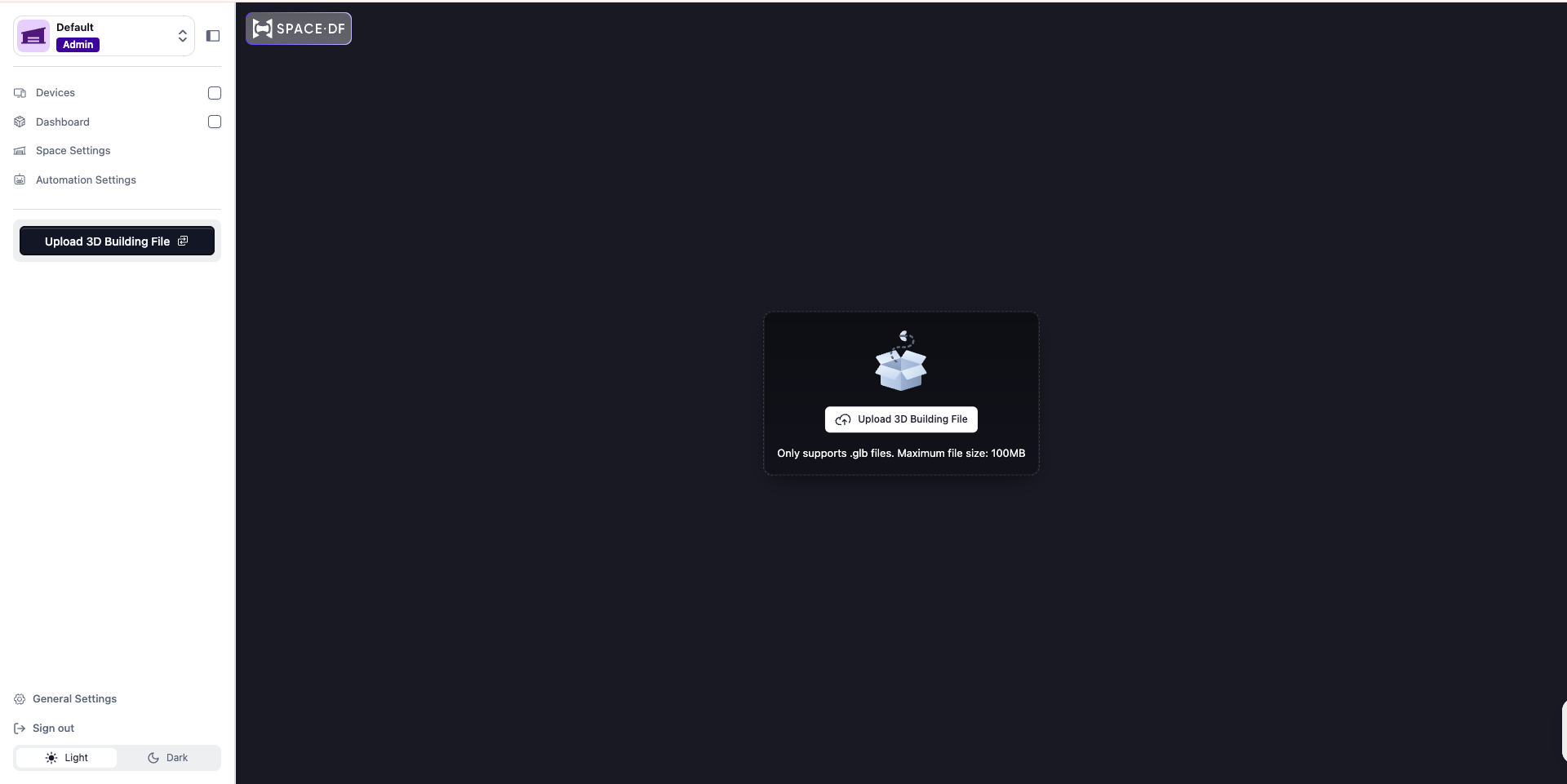
View Upload Screen: After signing in, you will see a screen asking you to upload a 3D building model to get started
-
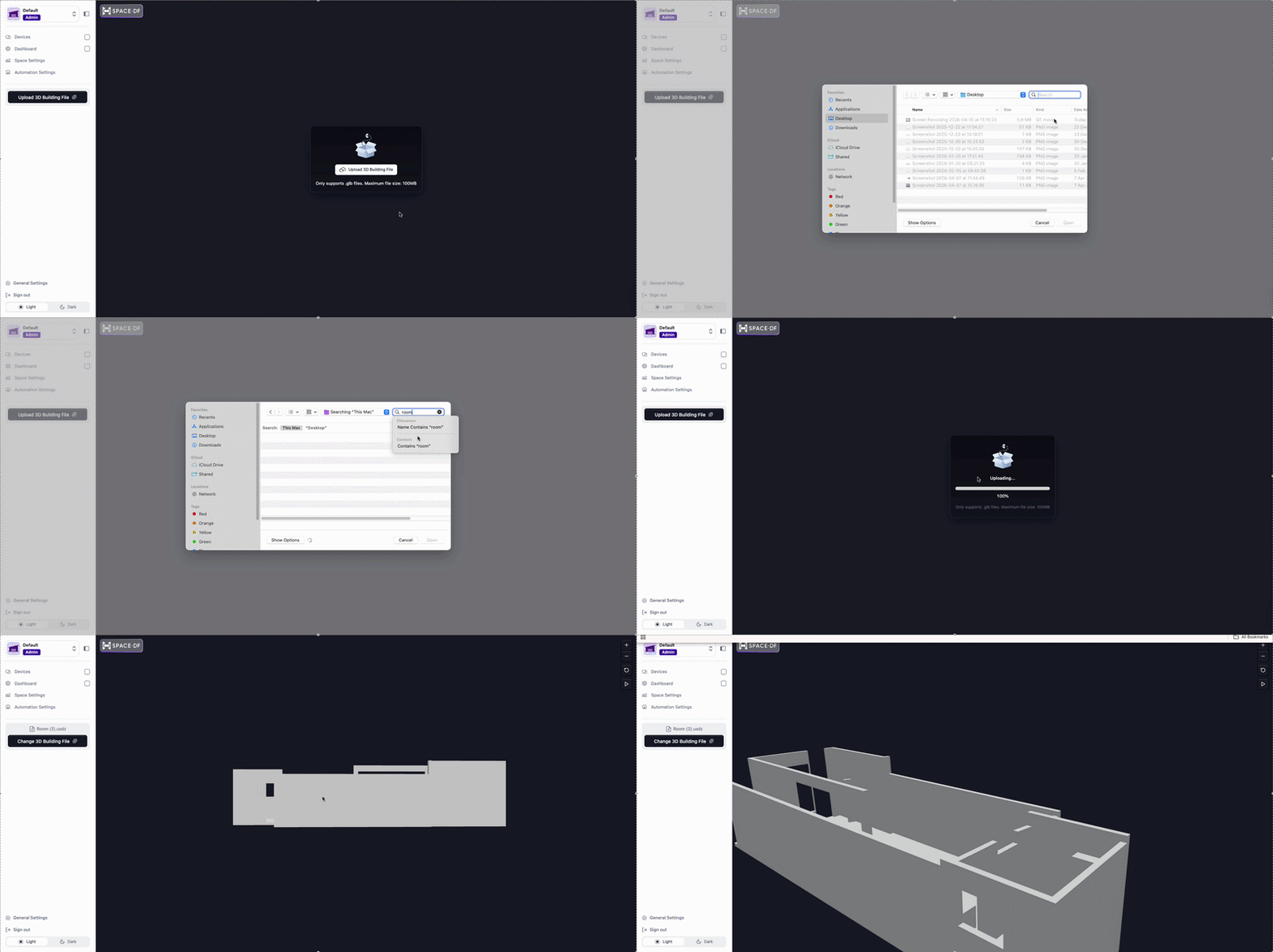
Upload Model: Click “Upload 3D Building File” and select your file from your local device
-
Change Model (Optional): Click “Change 3D Building File” on the left sidebar to replace your current model
Last updated on